A good smartphone camera can capture an impressive photo, but the image straight from the camera is not always ready to post. The lighting may look dull, the horizon might need straightening, colours may need adjustment, or an unwanted object in the background may distract from the subject. This is where a capable photo editing app can make a major difference.
In 2026, mobile photo editing has become much more advanced. Free apps are no longer limited to basic filters and cropping. Depending on the app, users can work with RAW photos, make selective adjustments, create social-media designs and even use AI-assisted editing features. For Instagram creators, small businesses, photographers and everyday smartphone users, many common editing jobs can now be completed without paying for professional desktop software.
However, “free” can mean different things. Some apps are genuinely free, while others provide a free tier and reserve advanced AI or professional features for subscribers.
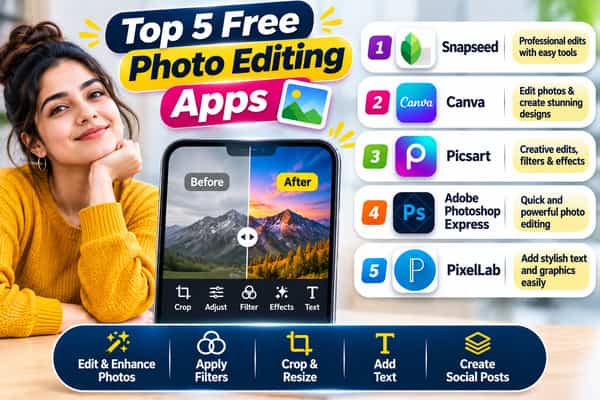
Here are the top 5 free photo editing apps to try in 2026.
Top 5 Free Photo Editing Apps at a Glance
| Rank | App | Best For | Free Access |
|---|---|---|---|
| 1 | Snapseed | Best completely free mobile editor | Free |
| 2 | Adobe Lightroom | Professional-style photo adjustments | Free tier |
| 3 | Canva | Photos for social media and designs | Free tier |
| 4 | Picsart | Creative and AI-assisted editing | Free tier |
| 5 | Google Photos | Quick everyday photo improvements | Free editing tools |
1. Snapseed – Best Completely Free Photo Editor
Snapseed remains one of the strongest choices for people who want serious mobile editing without immediately running into subscription screens.
Developed by Google, Snapseed combines easy automatic enhancements with surprisingly detailed manual controls.
It is particularly useful when you want to improve the actual photograph rather than turn it into a complicated graphic design.
What can you do with Snapseed?
Its editing toolkit includes features for tasks such as:
- Brightness and colour adjustment
- Cropping and rotation
- Perspective correction
- Selective adjustments
- Sharpening and structure
- Black-and-white editing
- Healing
- Creative effects
- RAW photo development
The selective nature of many tools is especially useful.
For example, instead of brightening an entire photograph and accidentally overexposing the sky, you can concentrate adjustments on the part that needs attention.
Who should use Snapseed?
Snapseed is an excellent option for:
- Beginners
- Travel photographers
- Instagram users
- Bloggers
- Smartphone photographers
- Anyone avoiding subscriptions
It also works well for learning the basics of editing because you can experiment with exposure, contrast, saturation, detail and other photographic concepts without needing complicated desktop software.
Best for: Users wanting powerful mobile photo editing with minimal cost barriers.
2. Adobe Lightroom – Best for Professional-Style Editing
Adobe Lightroom is one of the most recognisable names in digital photography.
The mobile app can be downloaded and used for free, with core editing tools and presets available without purchasing the full premium experience.
Lightroom is particularly good for users who want detailed control over the look of a photograph.
You can work with adjustments involving:
- Exposure
- Contrast
- Highlights
- Shadows
- Colour
- White balance
- Sharpness
- Presets
- Cropping
- Tonal adjustments
This makes Lightroom especially useful when a photograph is fundamentally good but needs better colour and lighting.
Why Lightroom feels different
Apps designed for social media often focus heavily on stickers, templates and effects.
Lightroom approaches editing more like a photography tool.
You can take a slightly underexposed travel photograph, for example, and carefully improve its shadows, highlights, colour temperature and overall tone rather than simply placing a filter over it.
This also makes it valuable for users trying to develop a consistent visual style across multiple photographs.
Some of Lightroom’s more advanced capabilities—including certain masking and AI-assisted features—require premium access.
Best for: Photographers, serious smartphone users, travel creators and anyone interested in detailed colour correction.
3. Canva – Best for Social Media Photo Editing
Canva is not primarily a traditional photography editor, and that is exactly why it deserves a place on this list.
Many people do not edit photos simply to make the photograph itself look better. They edit them because they need to create something else with the image.
That might be:
- An Instagram post
- YouTube thumbnail
- Blog featured image
- Facebook post
- Poster
- Advertisement
- Product promotion
- Presentation
Canva combines photo editing with an enormous design environment.
After uploading a picture, you can make visual adjustments and then immediately place the image into a social-media template, add text, icons, shapes and other design elements.
Why Canva is useful for creators
Suppose you run a small clothing business.
Instead of editing a product photograph in one app and then opening another program to create an Instagram post, Canva allows much of that workflow to happen in one place.
AI-powered photo tools are also becoming a bigger part of Canva’s editing environment, although access to particular advanced features may depend on the user’s plan.
Its free tier remains highly useful for ordinary editing and design work.
Best for: Social media managers, bloggers, YouTubers, marketers and small businesses.
4. Picsart – Best for Creative and AI Photo Editing
Picsart is designed for people who want their edits to go beyond conventional exposure and colour correction.
Its combination of creative effects, design tools and AI-assisted functionality makes it particularly attractive for social-media content.
Depending on the feature and account level, Picsart can assist with tasks such as:
- Photo enhancement
- Background editing
- Object-related edits
- Retouching
- Filters and effects
- Collages
- Text overlays
- Social graphics
- AI-assisted transformations
Why Picsart is popular with creative users
Lightroom is often about making a photograph look professionally processed.
Picsart is more suitable when you want to transform the image.
For example, a creator might want to remove or modify a background, add text, create a promotional graphic and apply a distinctive visual effect.
This makes it useful for short-form social content where eye-catching visuals are often more important than traditional photographic realism.
The main limitation is that not everything is included for free. Some advanced tools, assets and AI functionality can require premium access or have usage restrictions.
Best for: Social-media creators, casual designers, influencers and users interested in creative AI editing.
5. Google Photos – Best for Quick Everyday Editing
Not everyone needs dozens of professional sliders.
Sometimes you simply want a family, travel or food photograph to look a little better before sharing it.
Google Photos is particularly useful for this type of everyday editing.
It combines photo organisation with convenient editing features, reducing the need to move photographs into a separate application for every small adjustment.
Depending on your device and available features, common editing options can include:
- Cropping
- Rotation
- Brightness adjustments
- Contrast adjustments
- Colour changes
- Filters
- Suggested enhancements
- Additional computational or AI-assisted edits
Why simplicity matters
Professional editing apps are powerful, but power can become unnecessary complexity.
If all you need is to straighten a photograph, improve the lighting and crop distracting edges, a simpler editor can be faster.
Google Photos is therefore particularly suitable for people who already use it to organise or back up their photographs.
Availability of some advanced editing functionality can vary by device, account or feature rollout.
Best for: Beginners, casual photographers and users wanting fast everyday improvements.
Which Free Photo Editing App Should You Choose?
The right app depends more on how you edit than which app has the longest feature list.
Choose:
- Snapseed if you want a powerful, straightforward free photo editor.
- Lightroom if colour, lighting and photography controls matter most.
- Canva if your photos will become social-media posts, banners or thumbnails.
- Picsart if you enjoy creative effects and AI-assisted transformations.
- Google Photos if you want simple, quick everyday corrections.
You can also combine apps.
For example, a blogger might first correct the colour of a photograph in Snapseed or Lightroom and then import the final image into Canva to create a featured image with a title.
What to Look for in a Free Photo Editing App
Before installing multiple editors, consider what you actually need.
Important factors include:
- Ease of use: Can you understand the interface quickly?
- Manual controls: Can you adjust exposure, colour and detail?
- Export quality: Does the finished image retain sufficient resolution?
- RAW support: Important for more serious photographers.
- Selective editing: Useful for adjusting one area without changing everything.
- AI tools: Helpful for repetitive or complicated edits.
- Watermarks: Check whether free exports add branding.
- Privacy: Understand what happens when photos are uploaded for cloud or AI processing.
- Premium restrictions: Check which advertised tools actually require payment.
Avoid excessive editing simply because an app makes it easy. Extreme sharpening, skin smoothing, saturation and HDR effects can quickly make a natural photograph look artificial.
FAQs
Q1. Which is the best completely free photo editing app in 2026?
A. Snapseed is one of the strongest choices for users looking for a capable mobile editor without depending heavily on a premium subscription. It provides manual adjustments, selective editing, creative tools and RAW support.
Q2. Is Lightroom free for photo editing?
A. Lightroom’s mobile app can be used for free with core editing tools and presets. However, advanced features such as certain masking, AI tools and other premium capabilities require a paid subscription.
Q3. Which free photo editor is best for Instagram posts?
A. Canva is particularly useful when you need to combine a photograph with text, graphics and social-media layouts. For improving the photograph itself before posting, Snapseed or Lightroom may provide better photographic controls.
Q4. Do free photo editing apps reduce image quality?
A. Not automatically. Image quality depends on the original file, editing process, export resolution and compression settings. Repeatedly saving heavily compressed images or exporting at a low resolution can reduce quality, so always check export settings when image quality matters.